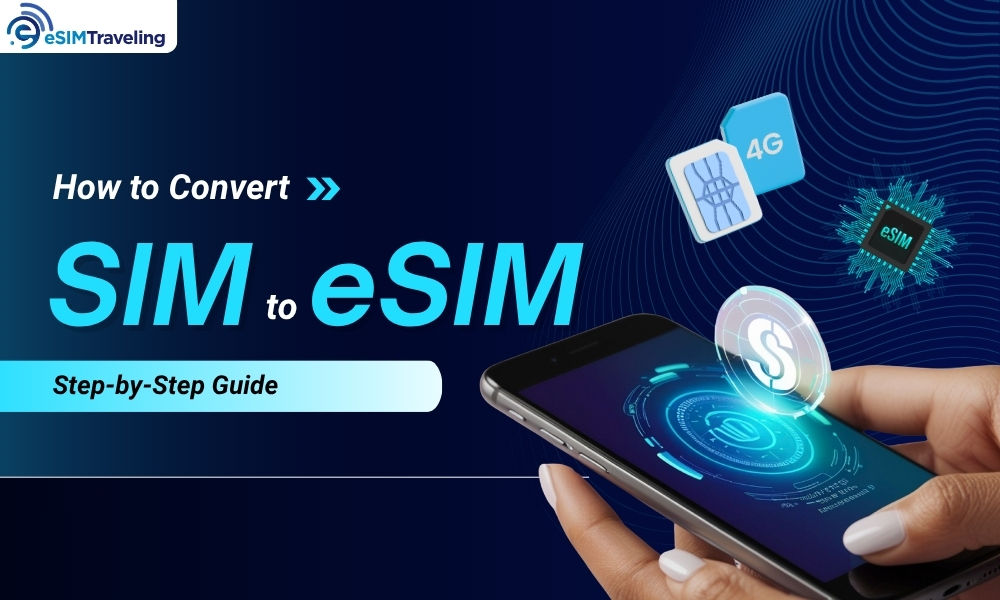

Are you thinking about swapping your physical SIM card for a digital one? Converting a physical SIM to an eSIM is an excellent choice that offers a simpler, more flexible way to manage your mobile connection—especially if you travel frequently or want to run two numbers on the same phone.
However, making the switch can sometimes feel confusing if you don’t know where to start. Below, you’ll find a clear, step-by-step breakdown of how to convert SIM to eSIM on both iPhone and Android devices.
What is eSIM and how does it work?
An eSIM, short for “embedded SIM,” is a digital version of the traditional plastic SIM card. Instead of requiring you to insert a small chip into a tray on your phone, the eSIM hardware is permanently built directly into your device’s motherboard by the manufacturer.
It serves the exact same purpose as a physical SIM—securely storing your mobile plan details and connecting your device to your carrier’s cellular network. The only difference is how the service is delivered. Instead of physically handling a card, your carrier profile is downloaded directly to your phone’s embedded chip via software, often using a simple QR code or a carrier app.

What is eSIM and how does it work?
Can You Convert a Physical SIM to eSIM?
Yes! In most cases, you can easily convert SIM to eSIM without losing any data. Your phone number, your cellular plan, your billing, and your contacts will all remain exactly the same. The only thing that changes is the delivery method of your network access.
However, successful conversion relies entirely on two primary factors:
- Your phone must have eSIM hardware built into it.
- Your cellular carrier must support eSIM activation and conversion.
Before you start clicking through your settings, make sure you have the following prerequisites sorted out:
- An eSIM-Compatible Device: Most iPhones from the XS/XR onward, newer Google Pixels (Pixel 3 and up), and recent Samsung Galaxy S and Z series phones support eSIM. Note: If you have an iPhone 14 or newer purchased in the U.S., it is eSIM-only and does not have a physical SIM tray.
- Carrier Support: Verify that your network provider allows physical-to-eSIM conversions. Most major carriers (like AT&T, T-Mobile, and Verizon) support it, but some smaller regional operators or prepaid plans may not.
- A Wi-Fi Connection: This is crucial. Because your mobile connection may temporarily drop during the switch, you need a stable Wi-Fi connection to download the new eSIM profile.
- An Unlocked Phone: If you are using the eSIM conversion to switch to a new carrier, ensure your device is not network-locked to your old provider.

How to Convert SIM to eSIM
How to Convert SIM to eSIM on iPhone
Apple has made the conversion process remarkably seamless, especially on iOS 16 and later. If you are staying with the same carrier, you can often do this entirely on-device.
- Connect your iPhone to a secure Wi-Fi network.
- Go to Settings > Cellular (or Mobile Data).

- If your carrier supports automatic conversion, you will see a button that says Convert to eSIM. Tap it.

- Tap Convert Cellular Plan.

- Confirm by tapping Convert to eSIM once more.

- Wait for the activation to complete. Once the eSIM is active, your physical SIM will be deactivated. You can safely remove it from the SIM tray and discard it.
Note: If you do not see the “Convert to eSIM” option, your carrier requires manual activation. You will need to tap Add eSIM (or Add Cellular Plan), select Use QR Code, and scan the QR code provided by your carrier.
How to Convert SIM to eSIM on Android
While Android devices vary slightly by brand and operating system version, the general process is very similar across modern smartphones.
Samsung Devices
Samsung makes converting to an eSIM straightforward through its built-in settings. If you want to convert SIM to eSIM on a Galaxy device, follow these simple steps:
- Connect to a Wi-Fi network.
- Open Settings > Connections.

- Tap on SIM manager (or SIM card manager).

- Tap your active physical SIM card.

- If your carrier supports it, tap Convert to eSIM and follow the on-screen prompts.
- If the direct conversion option isn’t available, return to the SIM manager, tap Add eSIM (or Add mobile plan), select Scan QR code, and scan the code provided by your carrier.

Google Pixel Devices
Google Pixel phones offer a seamless way to convert SIM to eSIM directly from your network settings. Follow these quick steps to make the digital switch:
- Ensure you are connected to Wi-Fi.
- Go to Settings > Network & internet > SIMs.

- Select the physical SIM you want to convert.

- Scroll down and tap Convert to eSIM (if supported by your network).

- Follow the on-screen instructions to finalize the download.
- Alternatively, if direct conversion isn’t an option, go back to SIMs, tap Add SIM > Download a SIM instead, and scan your carrier’s QR code.
Do you need to contact your carrier?
It depends on your network provider. Major carriers have heavily automated the process, allowing you to convert your SIM via the phone’s settings or through the carrier’s official mobile app without ever speaking to a human.
However, you will need to contact your carrier if:
- The “Convert to eSIM” option does not appear in your phone’s settings.
- Your carrier requires a unique QR code to be generated and emailed to you.
- You encounter an error during the profile download.
- You are transferring an eSIM between two completely different operating systems (e.g., from an Android phone to an iPhone).
What happens after converting to eSIM?
Once the eSIM profile successfully downloads and activates, your physical SIM card will be permanently deactivated. It will no longer connect to any network and essentially becomes a useless piece of plastic. You can safely remove it from your phone’s SIM tray and throw it away.
Your phone will now connect to the network digitally. All your regular services—calls, SMS, and mobile data—will function exactly as they did before.
Common problems and how to fix them
Converting is usually a breeze, but tech hiccups do happen. Here are a few common issues and their solutions:
- No “Convert to eSIM” option available: This usually means your phone software is outdated, your device is from a region that doesn’t support eSIM (like certain models sold in Mainland China), or your carrier doesn’t support on-device conversion. Update your OS and contact your carrier to request a QR code.
- “Activation Failed” or Profile Download Error: This is almost always caused by a spotty internet connection. Ensure you are connected to a strong, stable Wi-Fi network. You can also try resetting your network settings (Settings > General > Transfer or Reset > Reset > Reset Network Settings) and trying again.
- Phone is Locked: If you bought a subsidized phone through a carrier, it might be locked. You cannot add a different carrier’s eSIM to a locked phone. Contact your original carrier to request a device unlock.

Common problems and how to fix them
FAQs About Converting SIM to eSIM
How long does the conversion take?
If you are doing an on-device conversion or scanning a QR code, the actual transfer process takes less than 5 minutes. If you have to contact your carrier’s customer support to initiate the transfer, it may take a few hours for the backend network changes to process.
Is converting SIM to eSIM free?
In the vast majority of cases, yes. Major carriers will transfer your active line from a physical SIM to an eSIM for free. However, it’s always wise to double-check with your provider, as a few smaller carriers may charge a nominal “activation fee” (usually around $5 to $10).
Can I switch back to a physical SIM?
Yes, but it is not a digital process. Because the physical SIM you removed is now permanently deactivated, you cannot reuse it. To switch back, you will need to go to a carrier retail store or contact their support team to have a brand-new physical SIM card mailed out to you.
Can I use both SIM and eSIM at the same time?
Absolutely. Most modern smartphones feature “Dual SIM” functionality, allowing you to have one active physical SIM and one active eSIM simultaneously. This is perfect for managing a personal and a work line on a single device, or for using a physical home SIM alongside a temporary travel eSIM to avoid roaming charges.
Conclusion
Choosing to convert SIM to eSIM is a fast, free, and highly convenient way to upgrade how you manage your mobile connectivity. By eliminating the need for tiny plastic cards and easily lost ejector tools, eSIMs offer unparalleled flexibility—especially for travelers and those who juggle multiple phone numbers. As long as your device is compatible and you have a solid Wi-Fi connection, you can make the digital switch in just a few taps.